Recordly — Screen Recorder & Video Maker for Mac, Windows & Linux
Recordly
An all-in-one screen recorder and video maker for product demos, walkthroughs, and tutorials — no editing skills required.
Download the Recordly Screen Recorder & Video Maker
Available for Mac, Windows, and Linux — start making videos in minutes.
Screen Studio Quality for Just $29
Same professional features. One-time payment, lifetime access.
✓ Pay once — access stays active forever. Download anytime, as many times as you need, on any number of devices.
Screen Studio pricing verified at screen.studio in September 2026: $29/month or $108/year, macOS only.
Get Recordly for just $29 — No account needed. Click a system button above, complete your payment, and download anytime — unlimited times, on any device. Already have an account? Sign in
What's Included
Perfect For
See Recordly in Action
See what you can create with a screen recorder and video maker built for demos, tutorials, and marketing videos. No editing skills required.
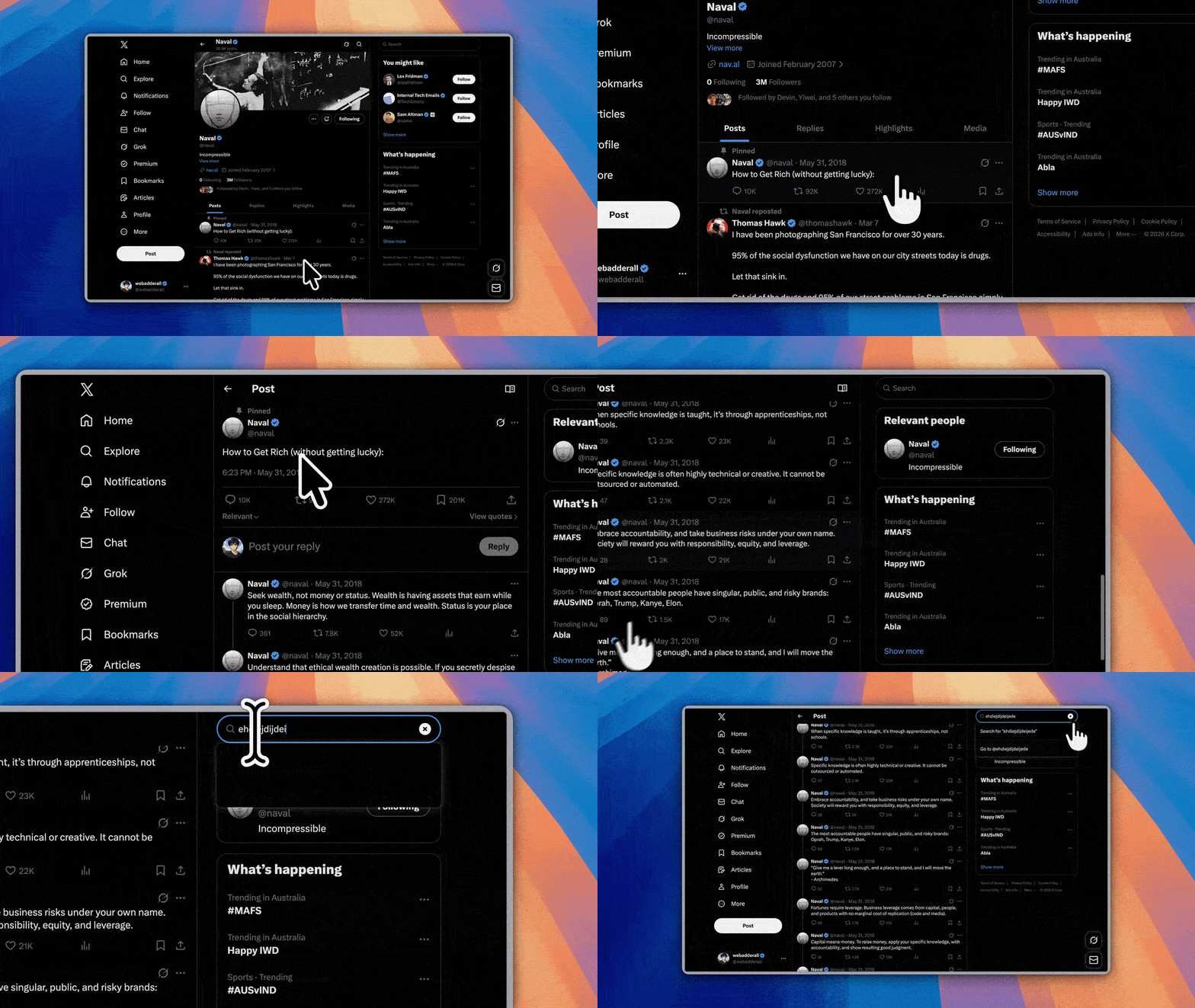
Auto-Zoom, Cursor Effects & Styled Frames
Automatically emphasize activity with zoom suggestions, smooth cursor movement, and motion effects. Place the final composition inside a styled frame with wallpapers, colors, gradients, blur, padding, and shadows.
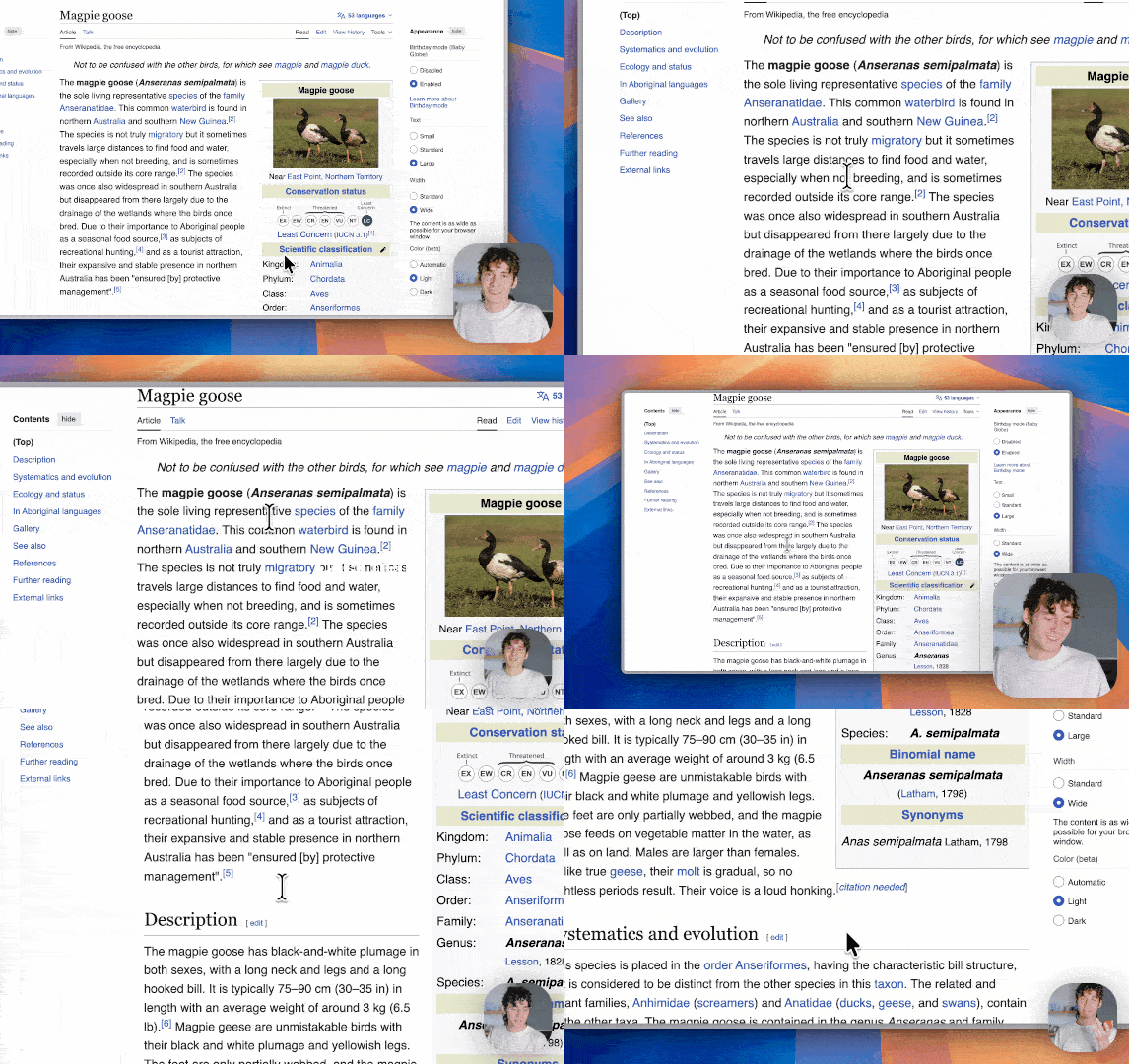
Dynamic Webcam Bubble Overlays
Add webcam footage as an overlay bubble, position it with presets or custom coordinates, mirror it, adjust its shadow and corner radius, and optionally make it react to zoom so it stays visually balanced during motion.
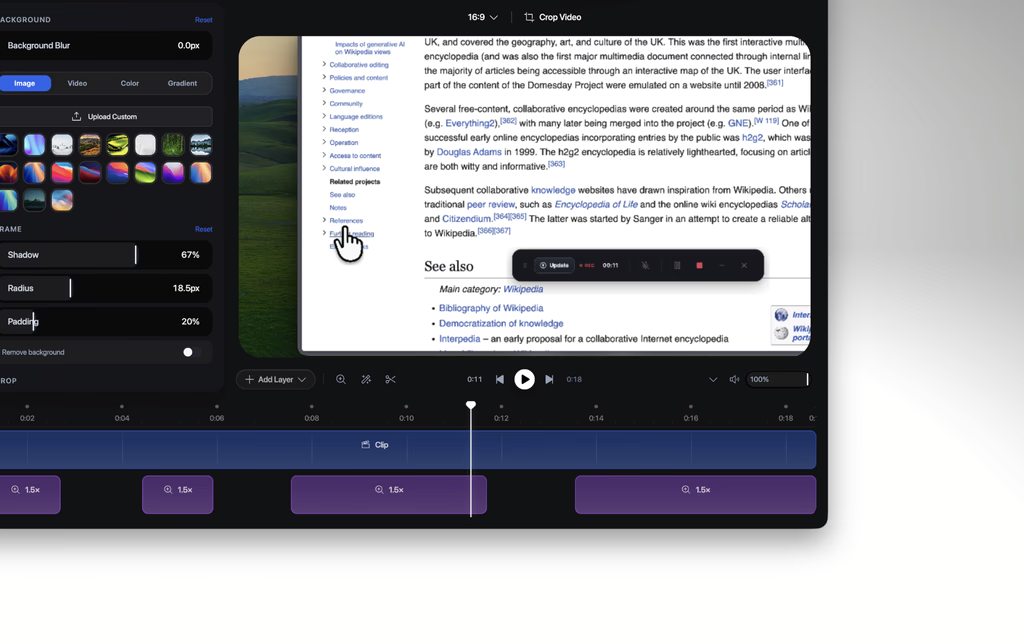
Video Editing Timeline Built for Demos
Drag-and-drop timeline tools for zooms, trims, speed regions, annotations, extra audio regions, and smart cropping. Save and reopen work as .recordly project files.
Why Choose Recordly
One screen recorder and video maker — record, edit, and export polished videos in a single app.
Recording
- Record an entire display or a single app window
- Jump directly from recording into the editor
- Capture microphone audio and system audio
- Use native capture backends where supported
- Resume editing from saved .recordly project files
- Open existing recordings or existing project files from the app
Timeline and Editing
- Drag-and-drop timeline editing
- Trim unwanted sections
- Add manual zoom regions
- Use automatic zoom suggestions based on cursor activity
- Add speed-up and slow-down regions
- Add text, image, and figure annotations
- Add extra audio regions on the timeline
- Crop the recorded frame
- Save and reopen projects with editor state preserved
Cursor Controls
- Show or hide the rendered cursor overlay
- Cursor size adjustment
- Cursor smoothing
- Cursor motion blur
- Cursor click bounce
- Cursor sway
- Cursor loop mode for seamless loop exports
- macOS-style cursor assets for the rendered overlay
Webcam Overlay
- Enable or disable webcam overlay footage
- Upload, replace, or remove webcam footage
- Mirror webcam footage
- Size control
- Preset positions and custom X/Y placement
- Margin control
- Corner radius
- Shadow control
- Optional zoom-reactive webcam scaling
Frame Styling and Backgrounds
- Built-in wallpapers
- Automatically finds wallpapers in your wallpapers folder
- Custom uploaded backgrounds
- Solid color backgrounds
- Gradient backgrounds
- Frame padding
- Rounded corners
- Background blur
- Drop shadows
- Aspect ratio presets for the final frame
Export
- MP4 export
- GIF export
- Export quality selection
- GIF frame-rate selection
- GIF loop toggle
- GIF size presets
- Aspect ratio and output dimension controls
- Open the export folder automatically
Workflow and Usability
- Customizable keyboard shortcuts
- In-app shortcut reference
- Report feedback and issues right from the editor
- Your editor preferences are saved automatically
- Return to your preview instantly after export
How to Use Recordly
Make polished screen recordings in three steps
Record
- Launch Recordly.
- Select a screen or window.
- Choose microphone and system-audio options.
- Start recording.
- Stop recording to open the editor.
Edit
Inside the editor you can:
- Add trims, zooms, speed regions, and annotations
- Tune cursor behavior and preview volume
- Style the frame with wallpapers, colors, gradients, blur, padding, and corners
- Add or adjust webcam overlay footage
- Add extra audio regions
- Crop the frame and choose an aspect ratio
Save your work anytime as a .recordly project.
Export
- Export as MP4 or GIF
- Select export quality
- Choose GIF frame rate, loop toggle, and size presets
- Control aspect ratio and output dimensions
- Open the export folder automatically
Frequently Asked Questions
Everything you need to know about Recordly
What is Recordly?
+Recordly is an all-in-one screen recorder and video maker that lets you record, edit, and export polished videos without extra software. It includes built-in tools for zoom, cursor effects, and styled backgrounds.
Is Recordly a screen recorder or a video maker?
+Both. Recordly combines a screen recorder and a video maker in one app: first capture your screen, webcam, and audio, then polish the footage in the built-in timeline editor — trims, zooms, cursor effects, backgrounds, and music — and export an MP4 or GIF without opening a separate video editor.
What operating systems does Recordly support?
+Recordly supports macOS 14.0+, Windows 10 Build 19041+, and modern Linux distributions. Each operating system uses native capture technology for optimal performance.
How does the zoom effect work?
+Recordly automatically applies smooth zoom effects that follow your cursor and highlight important areas. You can customize the zoom behavior or disable it entirely.
Can I record audio with my screen?
+Yes. Recordly supports microphone recording and system audio capture. On Windows, system audio is captured directly through WASAPI, with no virtual audio cable required.
Do I need editing skills to use Recordly?
+No. Recordly is a beginner-friendly video maker that produces professional-looking recordings without manual editing. The zoom, cursor effects, and backgrounds are applied automatically.
What video formats does Recordly export?
+Recordly exports MP4 videos and animated GIFs. You can choose quality, frame rate, loop settings, and output size before exporting.
Can I record specific windows or tabs?
+Yes. You can record your entire screen, a specific window, or a browser tab. Recordly gives you flexible recording options.
Is there a limit on recording length?
+There are no hard limits on recording length. Your recordings are limited only by your available disk space.
Can I customize the background?
+Yes. Recordly lets you replace your desktop background with gradients, solid colors, or custom images to give your recordings a professional look.
Does Recordly show my cursor?
+Yes, and it enhances it. Recordly can highlight clicks, smooth cursor movements, and add spotlight effects to make your cursor more visible.
Can I use Recordly for commercial purposes?
+Yes. Recordly can be used for both personal and commercial projects, including tutorials, product demos, marketing videos, and more.
Can I make product demo and marketing videos with Recordly?
+Yes. As a demo video maker, Recordly is built for product demos, tutorials, walkthroughs, and marketing videos. Auto-zoom, click highlights, styled frames, and webcam bubbles give your videos a polished, professional look without a production team or a separate video editor.
How do I get started with Recordly?
+Download Recordly for your operating system, install it, and click the record button. Choose what you want to capture, and start recording. It's that simple.
What is the best screen recording software in 2026?
+There's no single best option — it depends on how you work: OBS for live streaming (free, but requires manual setup), Loom for team video messaging ($15/user/month), and Recordly ($29 one-time) when you want an all-in-one screen recorder and video maker with auto-zoom, cursor effects, and a timeline editor for polished demos. Recordly supports macOS, Windows, and Linux.
How to screen record on Mac?
+On macOS 14.0+, download Recordly and use its native ScreenCaptureKit integration. Select your screen or a specific window, enable microphone or system audio, and click record. Recordly automatically adds smooth zoom and cursor effects for a professional result.
How to screen record on Windows?
+On Windows 10 Build 19041+, download Recordly and use its native Windows Graphics Capture (WGC) engine. Choose your recording area, enable audio sources, and start. Recordly also supports native WASAPI for high-quality system audio capture.
Is Recordly better than OBS screen recorder?
+It depends on your needs. OBS is great for live streaming, but you'll need time to set up scenes and sources manually. Recordly is purpose-built for polished screen recordings with automatic zoom, cursor effects, and a timeline editor — it works out of the box. If you want quick, professional recordings, Recordly is the better fit.
How to Record Your Screen — Complete Guide
Learn how to screen record on Mac, Windows, and Linux with Recordly
How to Screen Record: The Quick Answer
To screen record, download a screen recorder like Recordly, select your recording area (full screen, window, or tab), enable audio if needed, and click record. When done, stop recording and export as MP4 or GIF. Recordly makes this process effortless with automatic zoom, cursor effects, and a built-in editor.
How to Screen Record on Mac
Recording your screen on Mac is simple with Recordly. Here's the step-by-step process:
- Download Recordly for macOS 14.0+
- Launch Recordly and choose your capture mode: full screen, specific window, or browser tab
- Enable microphone and/or system audio using the native ScreenCaptureKit integration
- Click the record button and perform your demonstration
- Stop recording — Recordly automatically opens the editor
- Add zoom regions, polish your cursor, style your background, then export as MP4 or GIF
Recordly uses macOS's native ScreenCaptureKit for smooth, high-quality capture with minimal CPU usage.
How to Record Screen on Windows
If you're looking for a native, all-in-one screen recorder for Windows, Recordly is a solid choice. Here's how to record your screen on Windows step by step:
- Download Recordly for Windows 10 Build 19041+
- Open Recordly and select your recording target: entire screen, application window, or browser tab
- Configure audio sources — microphone, system audio via native WASAPI, or both
- Hit record and go through your workflow
- Stop recording to enter the built-in timeline editor
- Trim clips, add annotations, apply cursor effects, and export your polished video
Recordly uses the native Windows Graphics Capture (WGC) engine for high-performance recording, and lets you show or hide the cursor as needed. Record, edit, and export — all in one app.
Screen Recording Software: What to Look For
When choosing screen recording software, consider these key factors:
- Operating system support — Does it work on your system? Recordly supports macOS, Windows, and Linux.
- Post-recording editing — Can you trim, add effects, and export without a separate editor? Recordly includes a full timeline editor.
- Cursor and zoom effects — Professional recordings need smooth cursor motion and automatic zoom. Recordly handles this automatically.
- Export formats — MP4 for videos, GIF for quick sharing. Recordly supports both.
- Price — Many screen recorders charge $29+/month. Recordly is just $29, a one-time payment with lifetime access.
Recordly vs OBS (Open Broadcaster Software) Screen Recording
Open Broadcaster Software (OBS) is a popular free screen recording tool, but it's designed for live streaming, not for quick, polished recordings. Here's how Recordly compares to OBS screen recording:
| Feature | Recordly | OBS Studio |
|---|---|---|
| Setup time | Works out of the box | Manual scene and source setup |
| Auto zoom effects | Yes | No |
| Cursor effects | Yes | No |
| Built-in editor | Yes | No |
| GIF export | Yes | No |
| Price | $29 one-time payment | Free, open source |
| Live streaming | No | Yes |
If you need quick, professional screen recordings without OBS-style manual setup, Recordly is the better choice.
Recordly vs Loom Screen Recorder
Loom is a popular screen recorder for team video messaging, but it charges $15/user/month and limits free recordings to 5 minutes. Here's how Recordly compares to Loom screen recorder:
| Feature | Recordly | Loom |
|---|---|---|
| Price | $29 one-time payment | $15/user/month |
| Recording limit | No limit | 5 min (free) |
| Auto zoom | Yes | No |
| Cursor effects | Smoothing, click effects, motion blur | Basic click highlight only |
| Timeline editor | Yes | Basic |
| Local storage | Yes | Cloud only |
| Platforms | macOS / Windows / Linux | macOS / Windows, plus web and mobile |
| Team collaboration | No | Yes |
If you want professional screen recordings without monthly fees, Recordly is the better choice. Loom is better suited for teams that need cloud-based video sharing and collaboration features.
Prices verified on each product's official site in September 2026: Screen Studio, Loom, Camtasia, ScreenPal.
How to Choose a Screen Recorder in 2026: Compare the Main Options
There's no single "best" screen recorder — the right one depends on how you'll use it. Here's how the main options compare by use case:
- Recordly — A good fit for polished demos and tutorials. Includes auto-zoom and cursor effects. $29 one-time payment with lifetime access.
- Loom — A good fit for async team video messaging. $15/user/month with cloud storage.
- OBS Studio — A good fit for live streaming. Free, but requires manual setup.
- Camtasia — A good fit for professional video production. $179.88/year.
- ScreenPal — A good fit for budget-conscious users. $4/month with basic features.
If you want professional results out of the box without a subscription, Recordly is worth trying first. For live streaming, go with OBS; for team collaboration, Loom is the stronger fit.
Start Making Videos with Recordly
One screen recorder and video maker to record, edit, and export polished videos. No extra software needed.